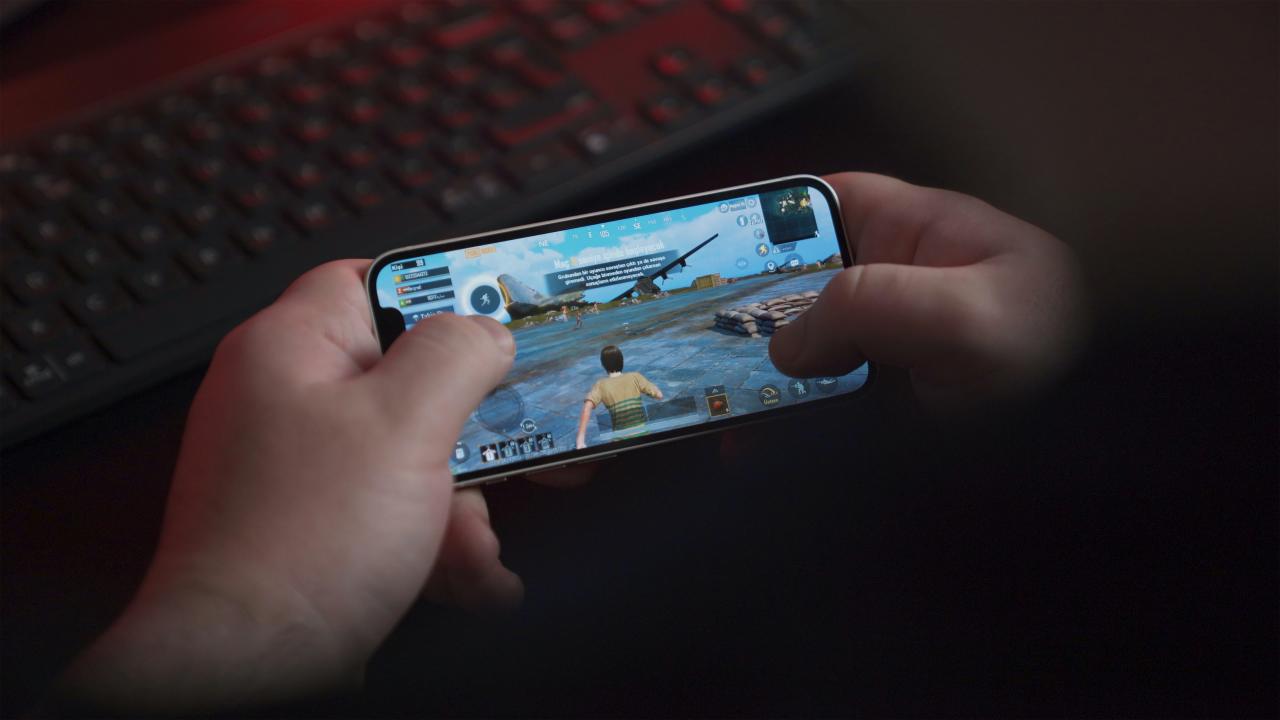
The pursuit of the ultimate high-frame-rate experience has become a central obsession for competitive gamers across the globe today. For many decades, players accepted low cinematic frame rates as a standard limitation of home console and early computer hardware.
We are now entering a breathtaking era where high-refresh-rate monitors and powerful GPUs allow for unprecedented levels of fluid motion. This evolution means that every single millisecond of input lag can determine the difference between a victory and a crushing defeat.
Modern optimization techniques focus on stripping away unnecessary visual fluff to expose the raw performance of your gaming machine. By mastering your system settings, you can significantly increase your clarity and reaction speed during high-pressure virtual engagements.
This article explores the essential pillars of frame rate optimization and how you can unlock your hardware’s true hidden potential. You will discover the practical secrets that turn a stuttering game into a powerful engine for smooth and precise competitive play. Let us explore the best path toward a more responsive and rewarding gaming life through the power of expert tuning.
Mastering GPU Driver And Power Configurations
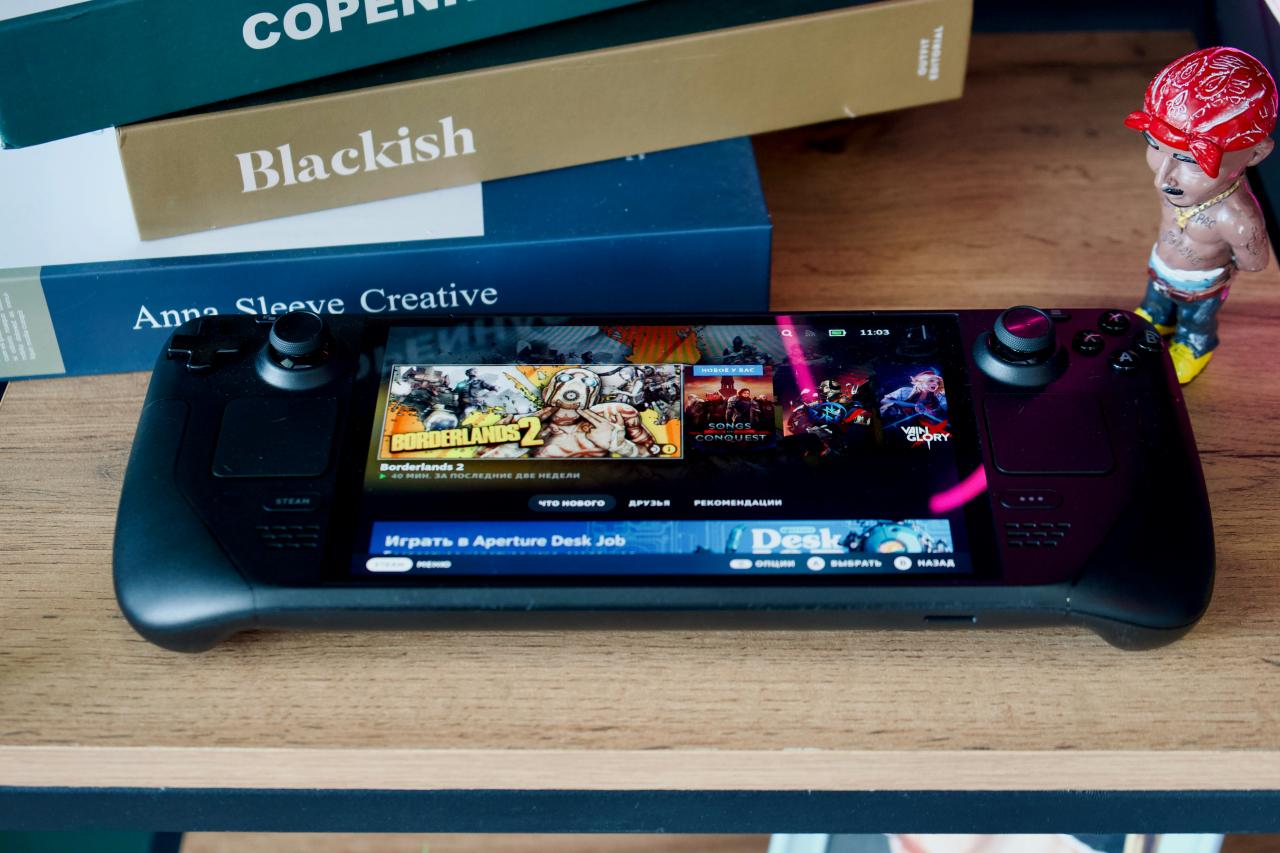
The foundation of high performance starts deep within your graphics card drivers and the power management settings of your operating system. In the past, many users simply installed their drivers and left everything on the “balanced” mode which often limited the card.
Now, elite players use “High Performance” power plans to ensure the GPU and CPU never downclock during the heat of battle.
This prevents sudden frame drops and ensures that your hardware remains in a high-alert state for immediate processing of game data. It is a fundamental shift toward “active readiness” where you prioritize raw speed over saving a small amount of electricity during your play sessions.
A. Adjusting the Global 3D Settings in your GPU control panel to prioritize “Maximum Performance” for the power management mode specifically.
B. Disabling “Vertical Sync” at the driver level to eliminate input lag and allow your frame rate to exceed your monitor’s refresh.
C. Setting the “Texture Filtering Quality” to high performance to reduce the workload on your GPU without significantly ruining the visual clarity.
D. Enabling “Low Latency Mode” or “Reflex” to synchronize the CPU and GPU work cycles for the fastest possible button-to-pixel response time.
The biggest problem for many gamers is the “thermal throttling” that occurs when their hardware runs at maximum power for too long. You solve this “heat trap” by setting a custom fan curve that ramps up early to keep your components cool and stable.
Think of your GPU as a high-performance engine; it needs a constant flow of fuel and air to maintain its top speed. When you optimize your driver and power settings, you remove the artificial limiters that prevent your hardware from reaching its true maximum velocity.
Stripping Windows For Maximum Gaming Efficiency
Your operating system often runs hundreds of background processes that compete with your game for vital CPU and memory resources. In the past, gamers had to manually close every program, but modern Windows versions include dedicated features to help manage these background loads.
Now, you can utilize “Game Mode” to tell the system to prioritize your active game window above all other background tasks. This reduces the chance of a random system update or a background scan causing a stutter at a critical moment in time. It is a strategic move to “clear the path” for your game data to flow through your processor without any obstacles.
A. Enabling “Game Mode” in the system settings to suppress background activities and give your game exclusive access to high-priority CPU threads.
B. Disabling “Startup Apps” that you do not need, which frees up valuable system RAM for the game to use for textures.
C. Turning off “Transparency Effects” and other visual animations in the Windows UI to reduce the idle load on your graphics chip.
D. Configuring “Hardware-Accelerated GPU Scheduling” to allow the graphics card to manage its own memory more effectively for a small FPS boost.
The challenge for many is the fear of breaking their computer by turning off features they might need for work or school tasks. You solve this “utility conflict” by creating a separate “Gaming” user profile on your PC that has all the fluff and background apps disabled.
Think of your OS as a crowded highway; you want to clear all the slow traffic so your game can drive at full speed. When you strip away the background noise of the operating system, you gain a much more consistent and reliable frame rate every day.
Fine Tuning In Game Graphics For Clarity
Inside the game menu, you have the power to decide exactly which visual effects are worth the cost in performance and frames. In the past, people used “Ultra” presets because they wanted the best looks, but these settings often include heavy effects that blur vision.
Now, competitive players intentionally lower “Shadow Quality” and “Motion Blur” to make enemy silhouettes stand out clearly against the background environment.
This makes it much easier to track targets and react to movement at the edge of your screen during fast-paced matches. It is a powerful way to “optimize for information” where you prioritize seeing the enemy over seeing realistic lighting or water.
A. Lowering “Volumetric Lighting” and “Fog” as these settings consume massive amounts of GPU power for very little actual competitive visual benefit.
B. Keeping “Texture Quality” at a high level if you have enough VRAM, as this keeps the game looking sharp without hurting FPS.
C. Reducing “Ambient Occlusion” to remove soft shadows in corners, which often helps you spot enemies hiding in dark or cluttered areas.
D. Disabling “Chromatic Aberration” and “Film Grain” to keep the image as clean and digitally perfect as possible for your tired eyes.
The problem for many is the “visual shock” of seeing a game look flatter and less cinematic after they lower the heavy graphics settings. You solve this “beauty gap” by using a “Sharpening Filter” in your GPU settings to restore the lost crispness without the performance cost.
Think of your game settings as a trade; you are trading away a bit of cinema for a lot of competitive power. When you tune for clarity, you transform your game into a professional tool that highlights exactly what you need to see to win.
Leveraging AI Upscaling For High Refresh Rates
Modern graphics cards now include specialized hardware designed to use artificial intelligence to boost your frame rate without a huge loss in quality. In the past, lowering your resolution meant looking at a blurry mess that made it impossible to see distant enemies or targets.
Now, technologies like DLSS or FSR allow the game to render at a lower resolution and upscale it to your native screen size. This provides a massive boost to your FPS, which is essential for hitting the 140 or 240 FPS targets required for high-end monitors. It is a move to “work smarter” by using AI to fill in the gaps that the raw hardware cannot handle.
A. Selecting the “Quality” or “Ultra Quality” preset for AI upscaling to get the biggest FPS boost with the least amount of blur.
B. Using “Frame Generation” if your card supports it to smooth out the motion even further in demanding single-player or open-world games.
C. Monitoring the “Render Resolution” to ensure the AI has enough data to work with so the final image stays sharp and clear.
D. Checking for “Nvidia Reflex” or “AMD Anti-Lag” compatibility to ensure that the upscaling process does not add any unwanted input latency.
Many players worry that AI upscaling will introduce “ghosting” or strange artifacts that distract them during a high-speed movement or a flick shot. You solve this “artifact concern” by keeping your drivers updated to the latest version to get the most recent AI model improvements.
Think of AI upscaling as a “force multiplier” that makes your mid-range graphics card perform like a high-end flagship model for free. When you embrace these modern tools, you can reach frame rates that were previously impossible for anyone without a massive and expensive rig.
Conclusion
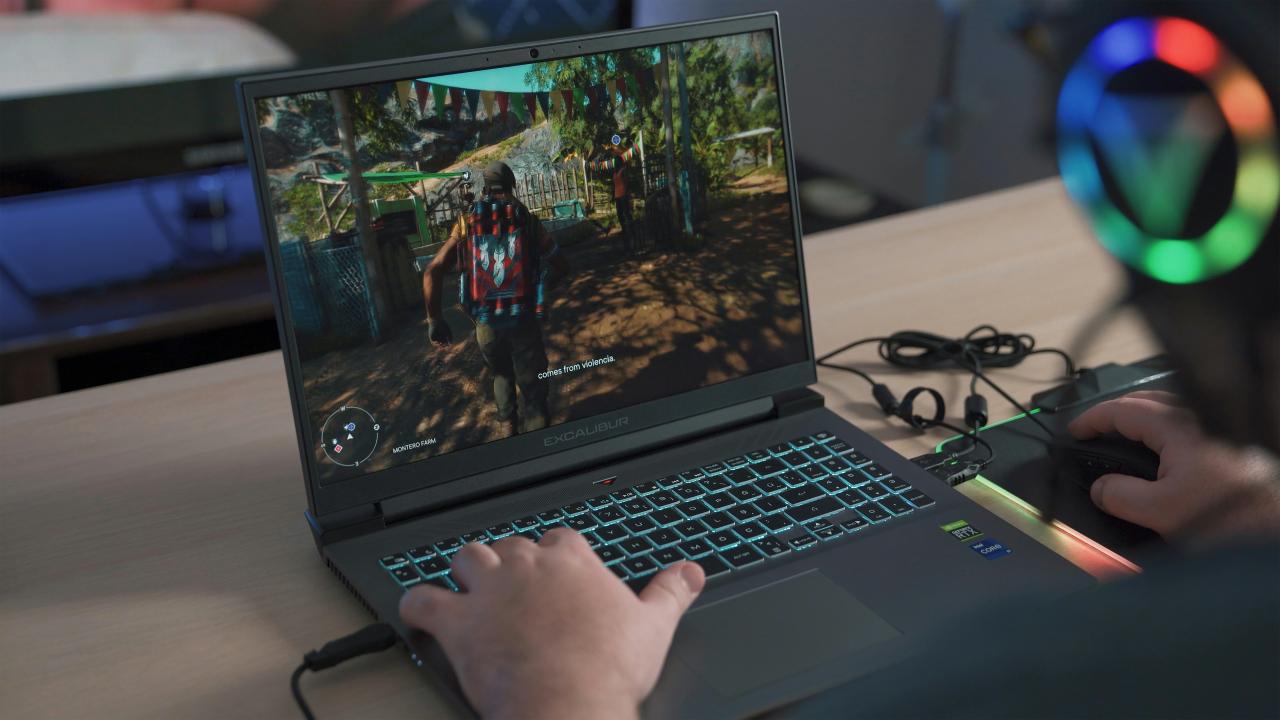
Strategic performance orchestration creates true sovereignty by replacing stuttering hardware with high-velocity system engines. Assigning missions to every software setting helps prevent background interference from dictating your gaming strategy.
This disciplined approach ensures your technical resources remain an efficient and powerful competitive asset. Auditing your drivers and optimizing memory allows you to reclaim operational control. Strategic resource allocation ensures your gaming environment acts as a fortress against performance shifts.
This logical framework provides the stability needed for a high-performance lifestyle. Building for the future requires executing optimization plans with unwavering and total confidence. Sophisticated digital systems transform your processing power into a permanent freedom engine.
Long-term excellence starts with the structural decisions you make right now. The future of architecture is defined by the systems you build.